CloudInsidr

Cyber security, infotech

  • Subscribe!
  • Privacy Policy
  • Legal
  • Contact Us

Join us on Twitter: @CloudInsidr

Follow us on Twitter: @cloudinsidr
  • news & alerts
    • events
    • industry analysis
    • industry gossip
    • people
  • cloud, edge & co.
    • AWS
    • administration & orchestration
      • web servers in the cloud
      • mail servers
      • databases
  • cybersec & warfare
    • encryption
  • blockchain
Home cybersecurity and cyber warfare How to create OpenSSH keys on a Windows desktop for remote access to a Linux server with PuTTY Key Generator
How to create OpenSSH keys on a Windows desktop for remote access to a Linux server with PuTTY Key Generator

Cloud Insidr 2016-11-27 Leave a Comment

How to create OpenSSH keys on a Windows desktop for remote access to a Linux server with PuTTY Key Generator

When using authentication based on keys (as opposed to a password), you have to create the key pair—a private key and a public key—on your local machine, then transfer the public key to the server and install it there. Here is how to do this on a Windows desktop for remote access to a Linux server.

Step 1. Set up PuTTY with PuTTY Key Generator

On your local PC, download and install PuTTY with PuTTY Key Generator.

Step 2. Create your key pair

In PuTTY Key Generator, select the type of key, the desired bit length and an optional passphrase, then hit “Generate” to create a public/private key pair.
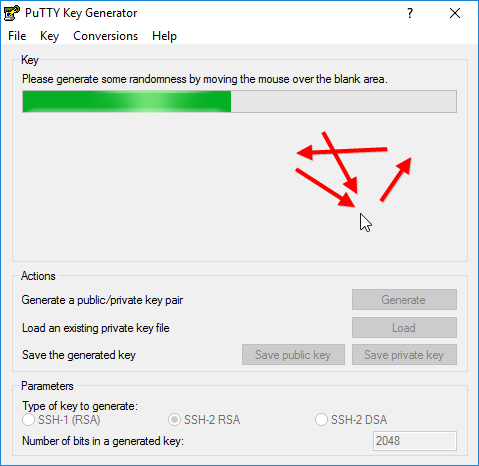
Creating a key pair in PuTTY Key Generator: random mouse movements decrease the likelihood of a successful brute-force attack on the key

Step 3. Save your private .ppk key for use with PuTTY

Click on the button “Save your private key” to save it in a .ppk file for use with PuTTY. You can always recover the public key from the private key file (for example by loading the private key file in PuTTY Key Generator), but not the other way around.
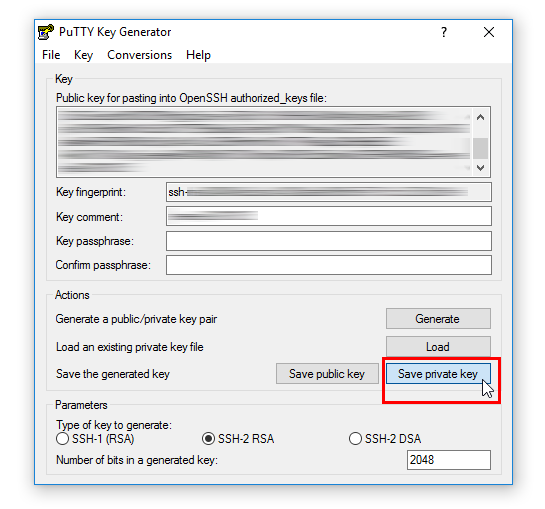
PuTTY Key Generator: saving a private key in a .ppk file for ssh access with PuTTY

Step 4. Save your private key for use with OpenSSH

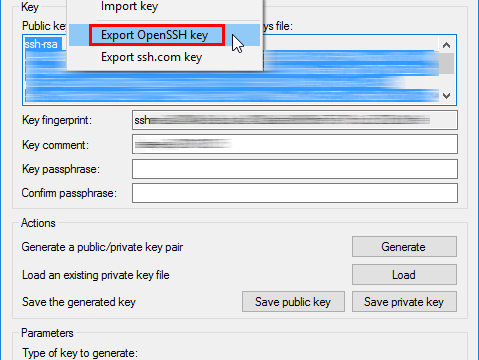
In order to save your private key for use with OpenSSH, select the command “Conversions > Export OpenSSH key” and save the file in a secure location in your home directory on your local computer. A good place to put your keys on your local Windows machine is in

C:\Users\username\.ssh

Remember: this key is your secret. Do not transfer it to the server!
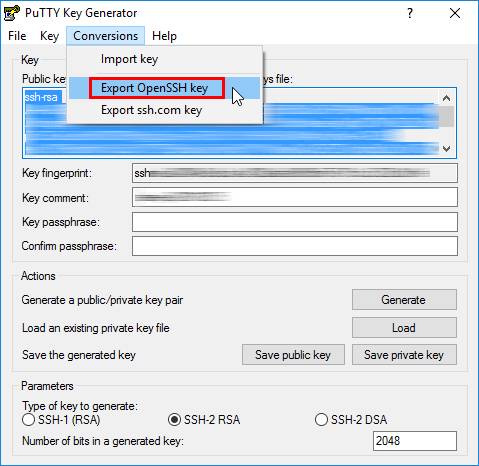
export_openssh

Step 5. Save your public key for use with OpenSSH

An OpenSSH-compatible version of your public key is displayed in the dialog. Copy it into the clipboard and transfer to the server.
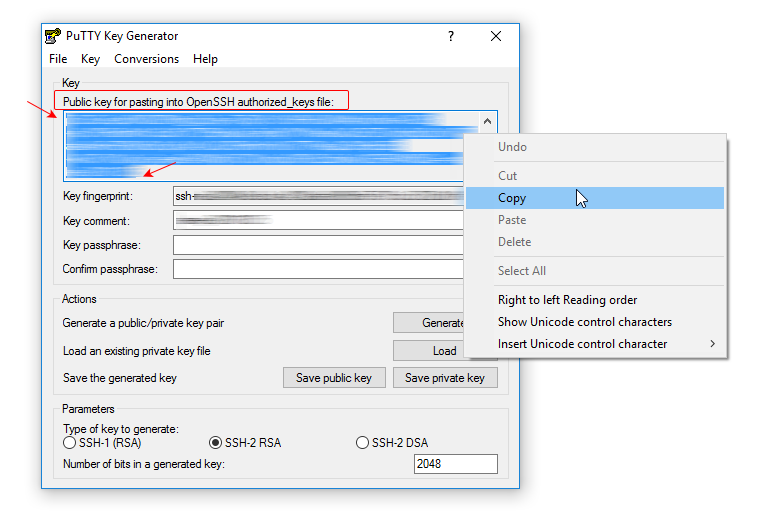
PuTTYGen: this is how to save your public key for use in authorized_keys

Follow these steps on how to set up remote access via SFTP to a web server root directory on RHEL/CentOS/Fedora using this key.

Filed Under: cybersecurity and cyber warfare, encryption, Uncategorized Tagged With: OpenSSH, PuTTY

Leave a Reply Cancel reply

Your email address will not be published. Required fields are marked *

Subscribe

SSL/TLS Certificate Square (250 x 250)

Pearson Education (InformIT)

SSL/TLS Certificate Medium Rectangle (300 x 250)

Recent Posts

  • Upgrading from CentOS 6 to CentOS 7 and Beyond?
  • How To Figure Out Who is Signing In To Dovecot to Send or Retrieve Email
  • OpenSSH 9.9 Introduces Enhanced Quantum-Resistant Algorithms
  • OpenSSL 3.3 Final Release is now live!
  • How to Activate HTTP/2 with TLS 1.3 Encryption in NGINX for Secure Connections without a Performance Penalty
  • Is AWS sucking your budget dry? Strip it down to the nitty-gritty (without breaking stuff)
  • How to attach and mount an NVMe EBS volume on EC2
  • SELinux security contexts: correcting SELinux labels on a file system
  • Intel gobbling up Israeli Tower Semiconductor, Stock Goes Through The Roof
  • NGINX on AWS EC2: setting up a web server from scratch on a domain of your choice
  • Log4j RCE and mitigation techniques
  • Set up logrotate for Postfix

Symantec

Categories

  • administration and orchestration
  • alerts
  • AWS
  • Bitcoin
  • cloud, edge and everything in between
  • cryptocurrencies
  • cybersecurity and cyber warfare
  • databases
  • DNS
  • encryption
  • events
  • FinTech and InsurTech
  • homeland security
  • HTTP Security Headers
  • industries
  • industry analysis
  • industry gossip
  • Java
  • Linux
  • mail servers
  • networking
  • news
  • NGINX
  • people
  • php-fpm
  • reviews
  • SELinux
  • tips and tricks
  • Uncategorized
  • web servers in the cloud

Tags

AMI AWS AWS EBS Azure certificate cipher suites cryptography cyber defense cybersecurity cyber security Diffie-Hellman DNS DNS over HTTPS Dovecot EBS EC2 email encryption Fedora HTTP/2 HTTPS IBM letsencrypt Linux logs MariaDB MFA MySQL NGINX OpenSSL permissions php-fpm PHP 7 postfix RegEx Route 53 RSA SELinux SQL SSH SSL TLS TLS 1.3 TLS vulnerabilities WordPress

Archives

  • January 2025
  • November 2024
  • October 2024
  • May 2024
  • January 2023
  • March 2022
  • February 2022
  • December 2021
  • December 2020
  • November 2020
  • September 2020
  • January 2020
  • November 2019
  • August 2019
  • July 2019
  • April 2019
  • December 2018
  • October 2018
  • September 2018
  • August 2018
  • June 2018
  • May 2018
  • April 2018
  • February 2018
  • December 2017
  • November 2017
  • October 2017
  • August 2017
  • April 2017
  • February 2017
  • January 2017
  • November 2016
  • September 2016
  • August 2016
  • July 2016
  • March 2016
  • February 2016
  • January 2016
  • December 2015
  • November 2015
  • October 2015
  • September 2015
  • July 2015
  • February 2015

Recent Comments

    Wicked fast Networking (With a Government Clearance to Boot)

    ©2022 CybrAnalytiqa OÜ

    • Content purchasing and syndication